These instructions were tested with stunnel-4.21-installer.exe.
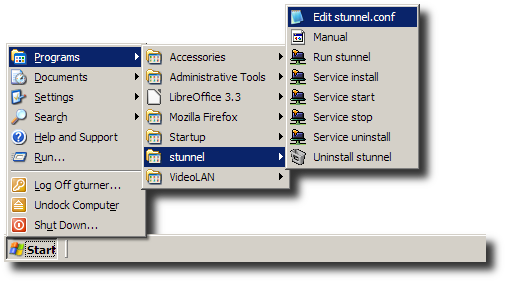
This shortcut launches Notepad with the file C:\Program Files\stunnel\stunnel.conf.
At the end of the file add the following four lines of configuration:
          [secure-squid-unzane]
          accept = 3128
          connect = unzane.com:43128
          client = yes
Then save and exit Notepad.
Note that each time you restart your computer you will need to repeat this step in order to use the proxy.
Rather than running "Run stunnel" each time you restart your computer, you may wish to run "Service install" and "Service start" which should install the program as a Windows Service, however Administrative priveleges may be required.
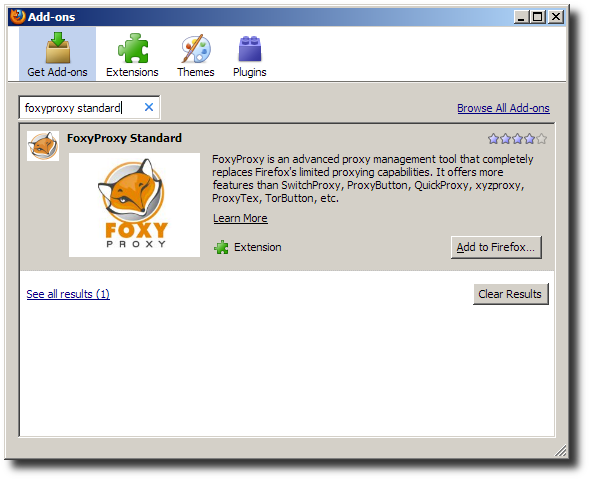
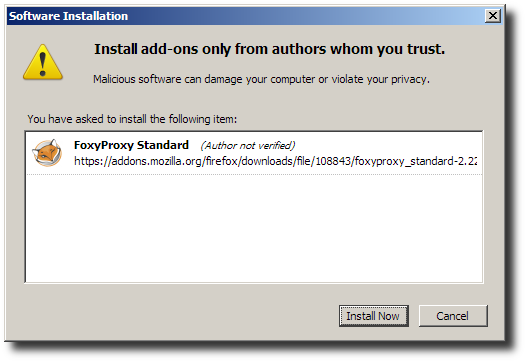
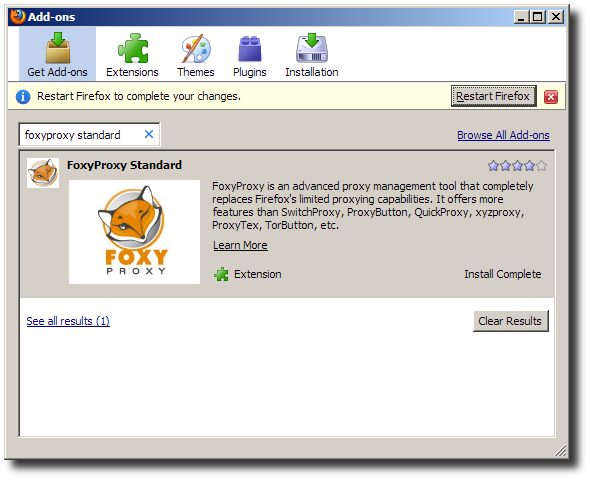
After installation into the Firefox Add-ons you will need to Restart Firefox.
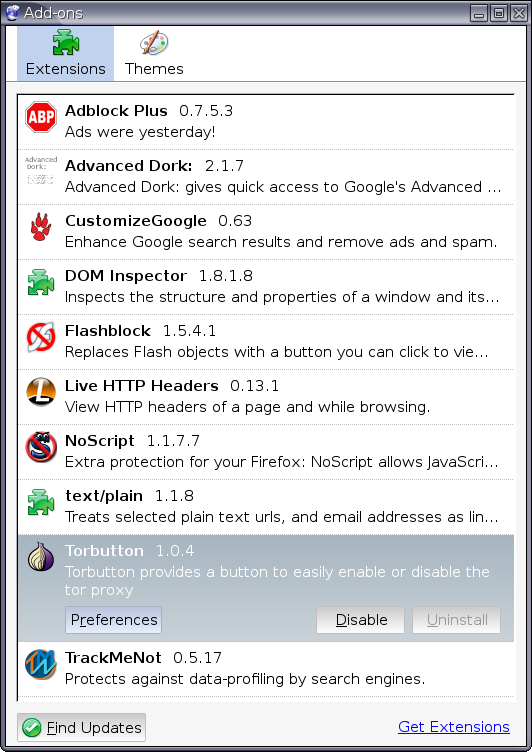
After Firefox has been restarted locate the Torbutton plugin in the
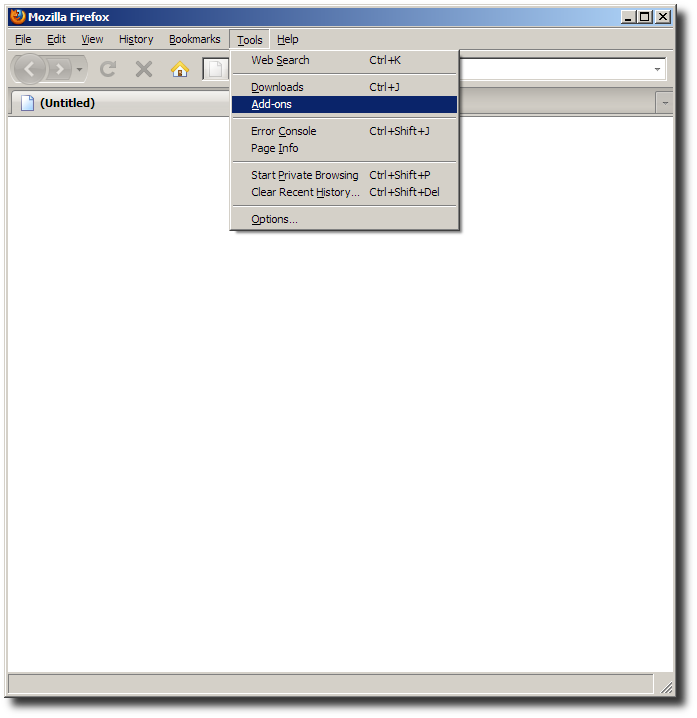
Add-ons window by selecting the Tools > Add-ons menu:
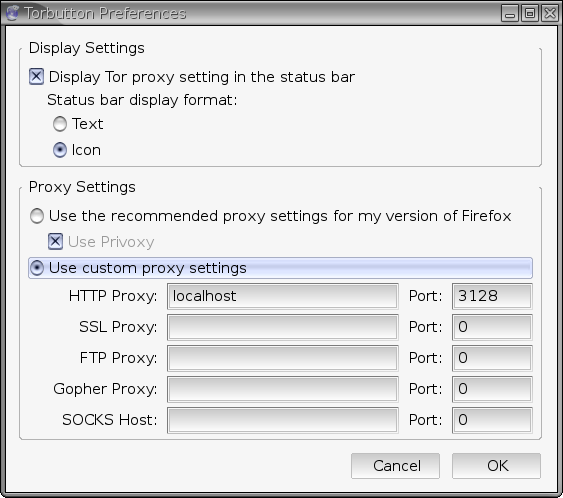
Then change the following Torbutton preferences:
Torbutton appears an as onion in the lower-right corner of the Firefox statusbar. You may click the onion icon to toggle whether Firefox will utilize the proxy.
The following image shows Torbutton toggled off:
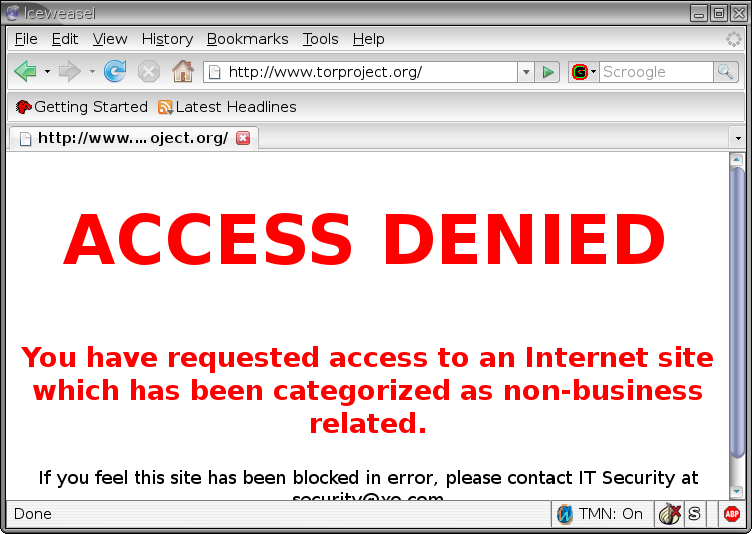
The following image shows Torbutton toggled on:

stunnel is an Open Source program that runs in the background when you computer starts that waits for local connections on specified ports, then establishes an encrypted connection to a remote stunnel. The encryption is great for bypassing Deep Packet Inspection done by some restrictive firewalls found in corporate offices, libraries, and repressive governments.
The following thirteen screenshots show the precise steps for
installing stunnel on Microsoft Windows XP.
You may wish to skip to the configuation
step.
-
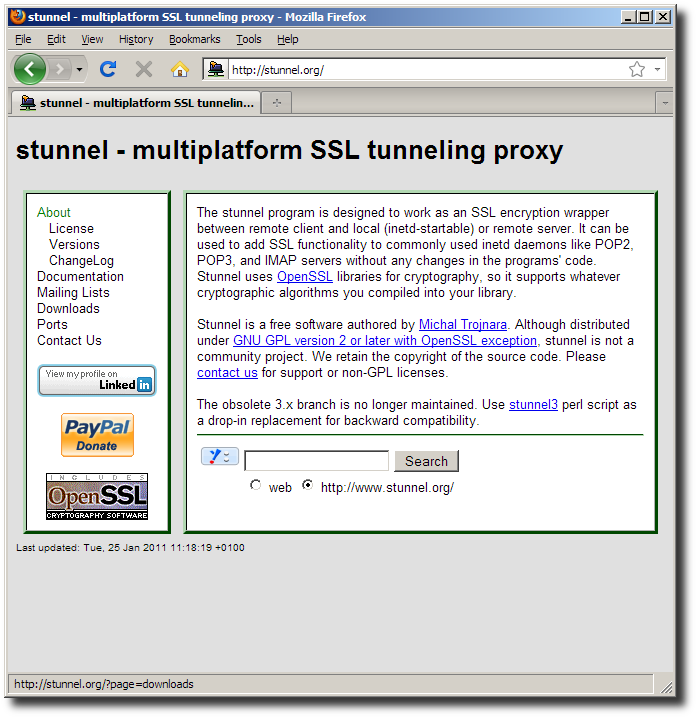
Visit http://stunnel.org/
locate the Downloads link.
-
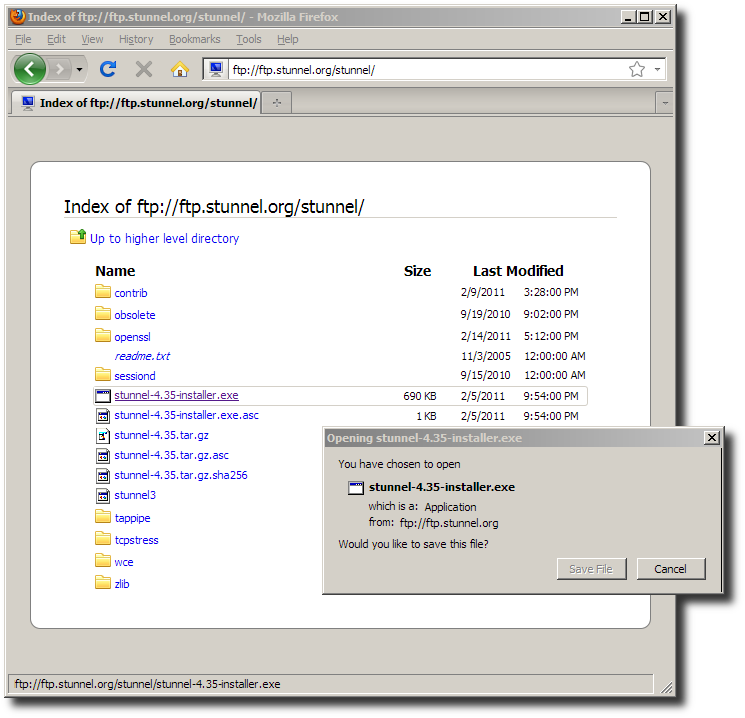
Download the stunnel-X.YY-installer.exe pre-compiled
Windows installation package.
-
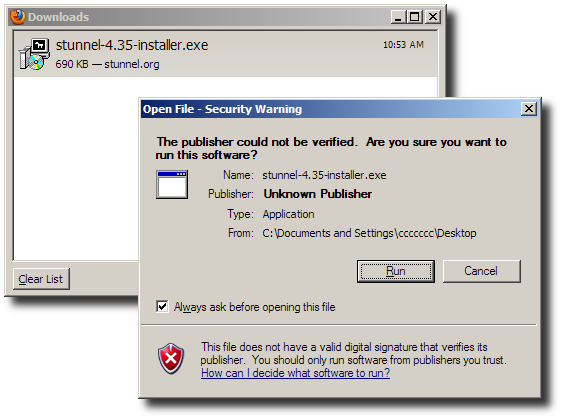
Run the downloaded stunnel-X.YY-installer.exe
executable.
-
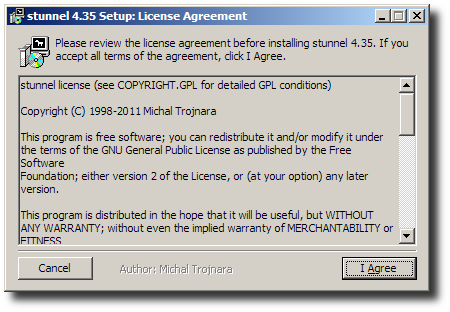
Accept the GNU GPL Copyleft license.
-
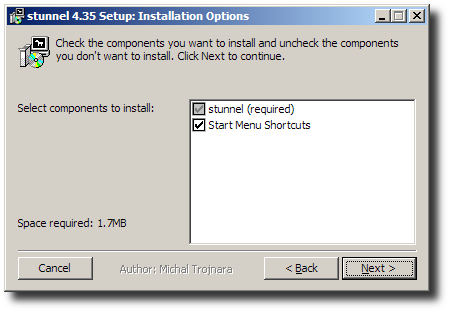
Accept installation options.
-
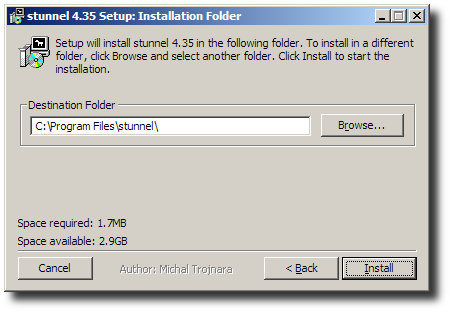
Select installation folder.
-
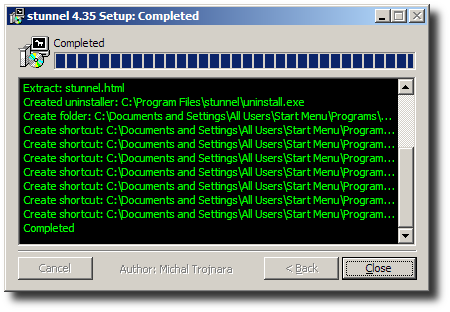
Close the installation program once it is complete.
-
Run the Edit stunnel.conf shortcut.
-
Replace the configuration with the following text:
[squid]
client = yes
accept = 53128
connect = ghatanothoa.unzane.com:53128

[tor]
client = yes
accept = 58118
connect = ghatanothoa.unzane.com:58118
Then save and close Notepad.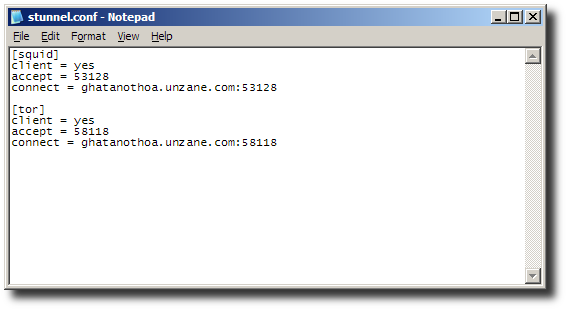
-
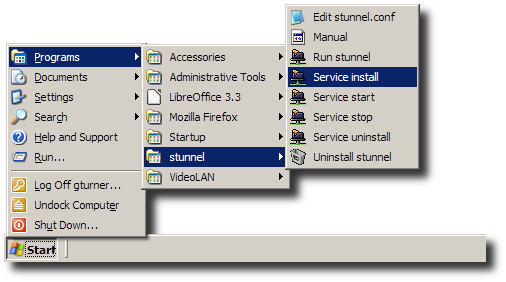
Run the Service install shortcut.
-
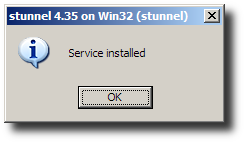
Confirm the service has been installed.
-
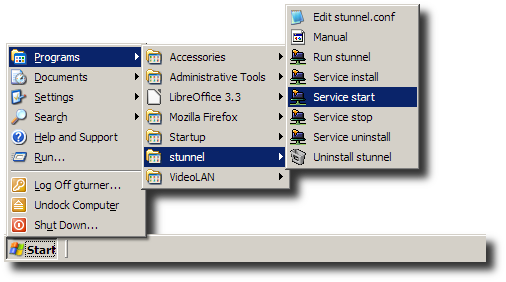
Run the Service start shortcut.
-
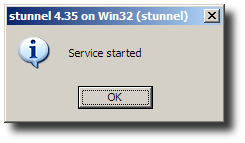
Confirm the service has been started.
FoxyProxy has URL pattern matching rules for selecting which proxy to use. There are three proxies: “Anonymized” (Tor), “Encrypted” (Squid), and “Default” (direct).
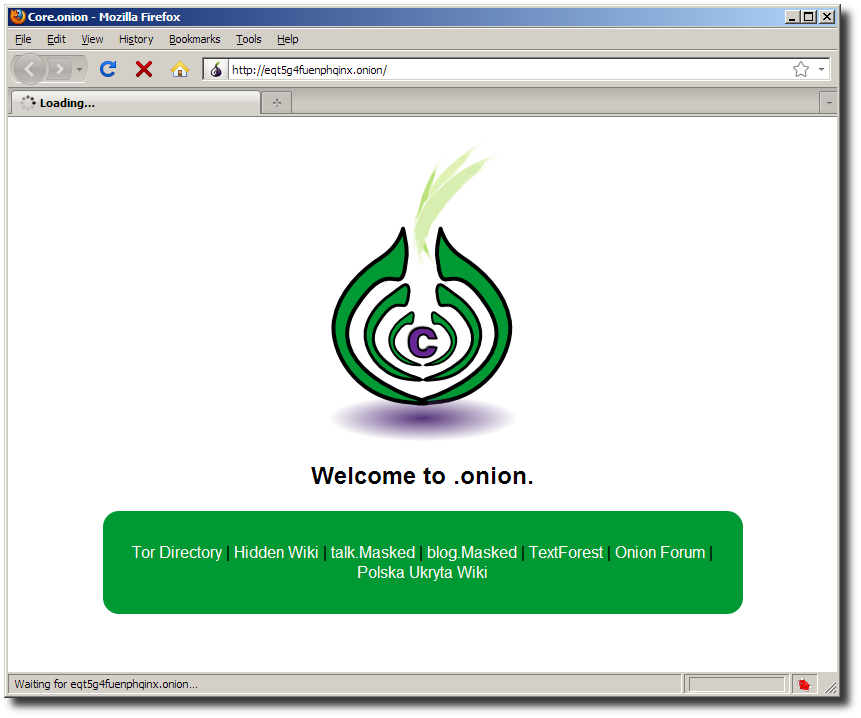
The Tor proxy should be selected for .onion URLs (Tor Hidden Services), for example browsing http://eqt5g4fuenphqinx.onion/ should find this secret website living on the “Dark Net”. Tor Hidden Services, and Tor in general, are very slow, it may take 30 seconds to a minute to find this site.
Notice red-tinted fox face in the status bar. This spins and changes color indicating it's communicating thru the “Anonymized” proxy. Normally it's orange and still while idle.
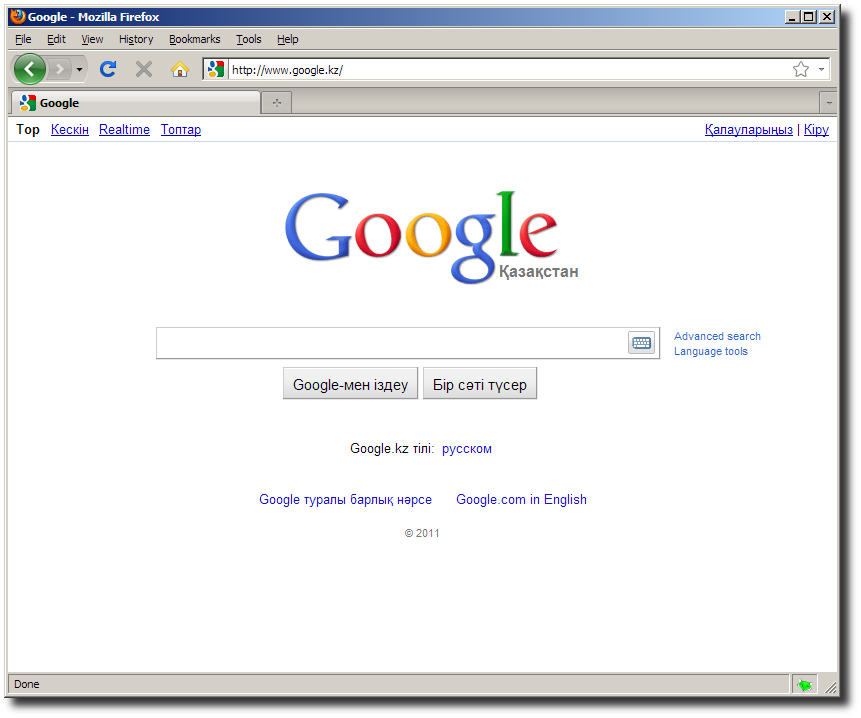
For all other URLs the “Encrypted” proxy is used. This proxy is very fast and low latency.
Browsing to www.google.com results in Google redirecting to www.google.kz (Kazahkstan), somehow the omniscient Google doesn't realize that the proxy server is located in Portland, Oregon. Personally I think this is great! Note that there is a "Google.com in English" link which returns to www.google.com.
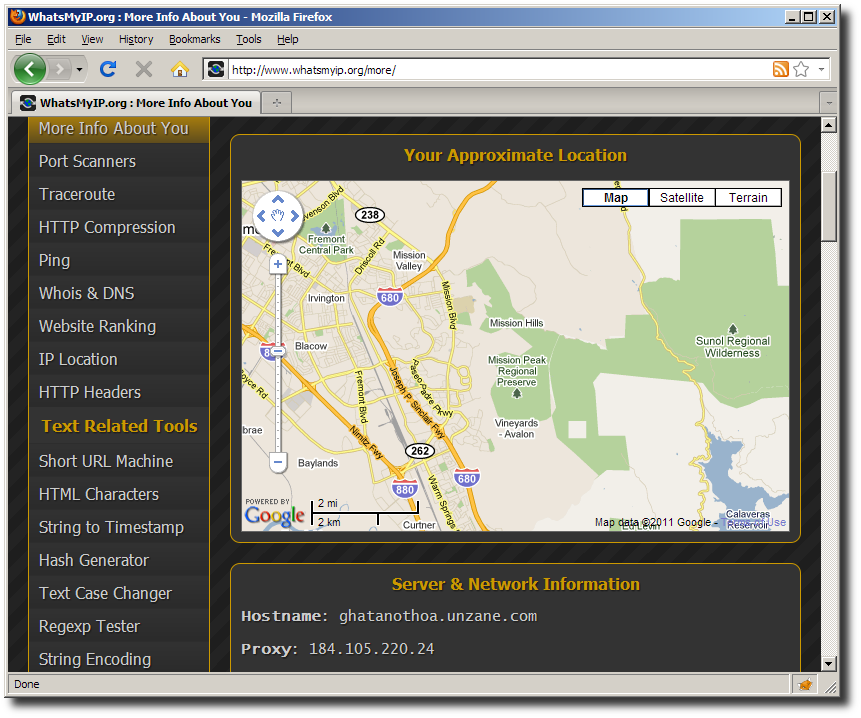
As proof that sites won't detect your actual IP address, here is the output of www.whatsmyip.org which shows our connection initiates from ghatanothoa.unzane.com (184.105.220.24). It's interesting to note that the IP-to-location database that this web site uses thinks that Unzane is in the wilderness north of San Jose, California - about 700 miles off.
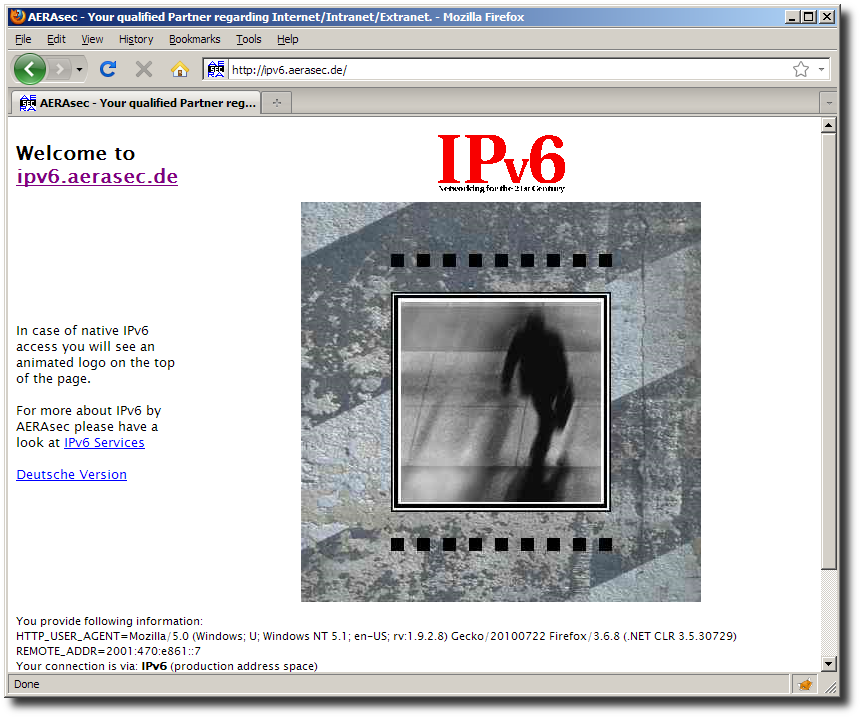
Another interesting side-effect of using the Squid proxy is that IPv6 web sites are accessible. Unfortunately Tor does not support IPv6 at this time. The test page at http://ipv6.aerasec.de/ shows the proxy connected from address 2001:470:e861::7 (the IPv6 address of ghatanothoa.unzane.com):
Finally, you can switch modes in FoxyProxy so that Tor is always used:
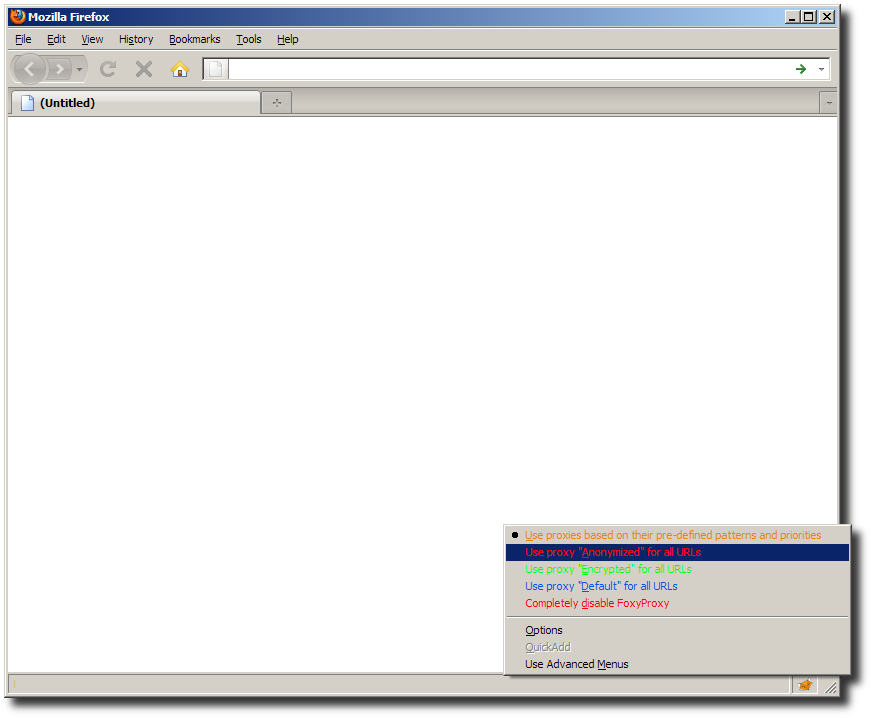
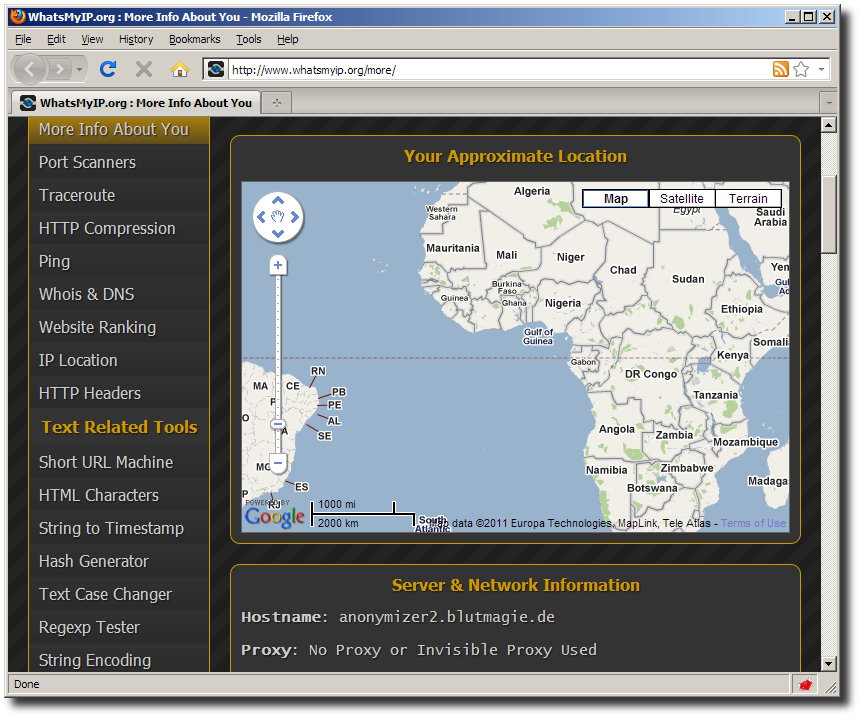
Now that FoxyProxy mode has been set to “Use proxy Anonymized for all URLs”, refreshing www.whatsmyip.org shows your connection originating from some random Tor Exit Node, in this case blutmagie.de in Germany, and yet again this web sites IP-to-location database is way off - on the Equator in the Atlantic Ocean off Africa.